Three new features: Study Calendar, Moments, and the Guided Tutor
The Study Calendar schedules revision for you, Moments files your child's work and awards in one tap, and the Guided Tutor gives hints before answers. Here's how to start with each.

Images refreshed in September 2026. The App interface language may differ from the article.
Over the past two months we built one tool for each of the three problems parents raise most often: homework that never gets written down in one place, a child's milestones scattered across the camera roll, and a child who copies the answer the moment they see it. Here's how each one works — about a minute to get started with any of them.
1. Homework List and Study Calendar
The problem: homework lives in the handbook, the parent group chat, and on the classroom whiteboard — so something gets missed, and dictations and tests only get revised the night before.
Getting started
- On the Capture tab, choose Homework List, then tap Scan list and photograph the handbook or whiteboard.
- Tap Read list. Every task is pulled out for you — edit any of them and add a due date.
- Tap Save list.
Study Calendar: homework and due dates
Back on the home screen you'll see Tonight's Plan. Tap it, or go to More → Study Calendar, to see the whole week.
Log dictations and tests: in the calendar, tap Add school event, pick the type (dictation, test, exam) and the date. Revision slots are scheduled automatically in the days beforehand — you don't have to work backwards yourself.
Put it on your home screen: long-press your phone's home screen and add a Tutor Wong widget. There are three — Today Focus, Mini Week, and Homework List. When your child finishes something, tap Complete right on the home screen without opening the app.
2. Moments · Portfolio
The problem: the P1 or secondary-school interview asks for a portfolio, and you discover three years of photos scattered through the camera roll — an entire evening of scrolling.
Getting started
- Open your child's profile and tap Moments · Portfolio.
- Tap Upload photos — you can select several at once.
- Give each photo a category: Activities, Family, Awards, School, Learning, or Other.
The Moments and portfolio entry on a child profile (Chinese interface)
Let the AI write the caption: turn on Automatic photo captions under More → Settings. After each upload you'll see an AI suggestion; tap Use to keep it, instead of typing a caption for every photo.
Graded homework goes in too: on a grading result, tap the star — Save to Learning — and that paper is filed under the Learning category automatically.
Make the PDF: once you have enough photos, create a portfolio from My Portfolios on the same screen. Pick one of six layouts, then download the finished PDF and print it.
Plan notes: PDFs made on the free plan carry a watermark; paid plans don't. Each child can have up to 5 portfolios. Photo limits are 50 on Free, 500 on BASIC, and 2,000 on PRO.
3. The Guided Tutor
The problem: a stuck child jumps straight to the answer, copies it, and is stuck again on the next question of the same type.
Getting started
- On the Capture tab, choose AI Tutor and photograph the question.
- The tutor doesn't hand over the answer. It opens with Guided hints and a Think about prompt, so your child tries first.
- Still stuck? Tap Show next hint to narrow it down one step at a time.
- Only when it's genuinely needed, tap Show full solution.
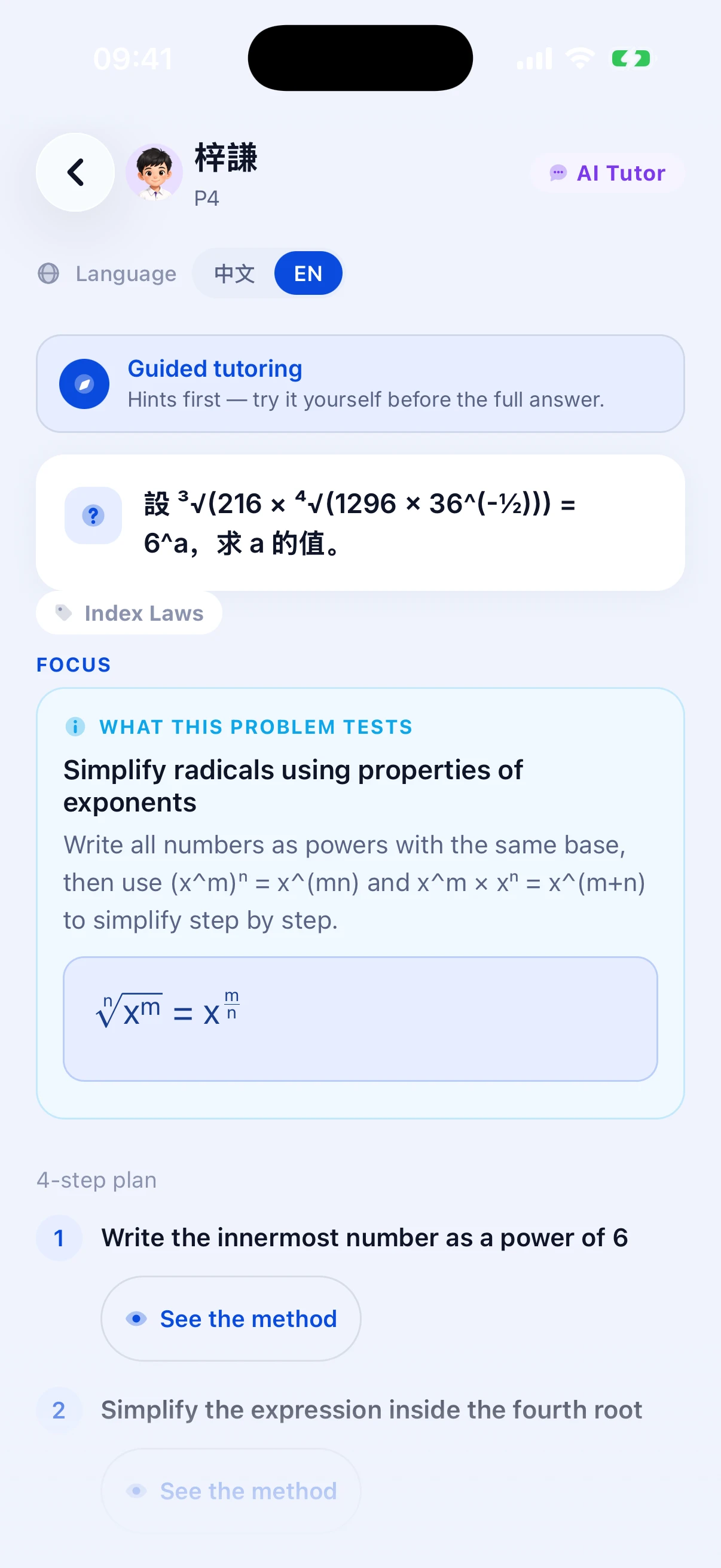
Guided tutor: the core idea first, then the working one step at a time (Chinese interface)
In lesson mode you'll see the Focus and an N-step plan. Tap See the working to follow the reasoning, and Reveal answer last.
Ask follow-up questions: type into the box, or use the ready-made prompts — I don't understand, Explain again, More detail, Give an example.
Watch it animated: tap Watch video tutorial and the solution is drawn out as a short video. Star it to keep it, and find it later under More → Saved Videos.
Questions?
More → Help & FAQ has all of our articles. If there's something you'd like us to build next, tell us — we read every message.
Former Hong Kong primary maths teacher with 15 years in the classroom. Built Tutor Wong after seeing the same homework mistakes thousands of times. Believes every error is a learning opportunity — if you know where to look.
All articles by Wong SirPractical learning tips each week
One tip each week, with ideas to support your child’s learning.
We'll only send tips. Unsubscribe anytime.
Disclaimer: The opinions expressed in this article are those of the author alone and do not represent the views or positions of 補習天王 (Tutor Wong), its founders, staff, or team. This article is provided for informational purposes only and does not constitute professional advice.
Keep Reading
General Studies Is Splitting Into Humanities and Science: Which Subject Is Your Child On This Year, and Does It Count?
General Studies is being replaced by Humanities and Science, two year levels at a time. Wong Sir's table shows which subject each year level takes this year and whether it counts for secondary allocation, plus what each subject covers, the new 呈分試 weightings, and how parents can help.
Wong Sir7 min5 Fun Ways to Master Times Tables
Help your child memorise multiplication facts with games, songs, and visual tricks.
Ms. Wong5 minHow to Help Your Child Manage Exam Anxiety
Practical tips for parents to reduce test stress and build confidence before exam season.
 Dr. Lam6 min